

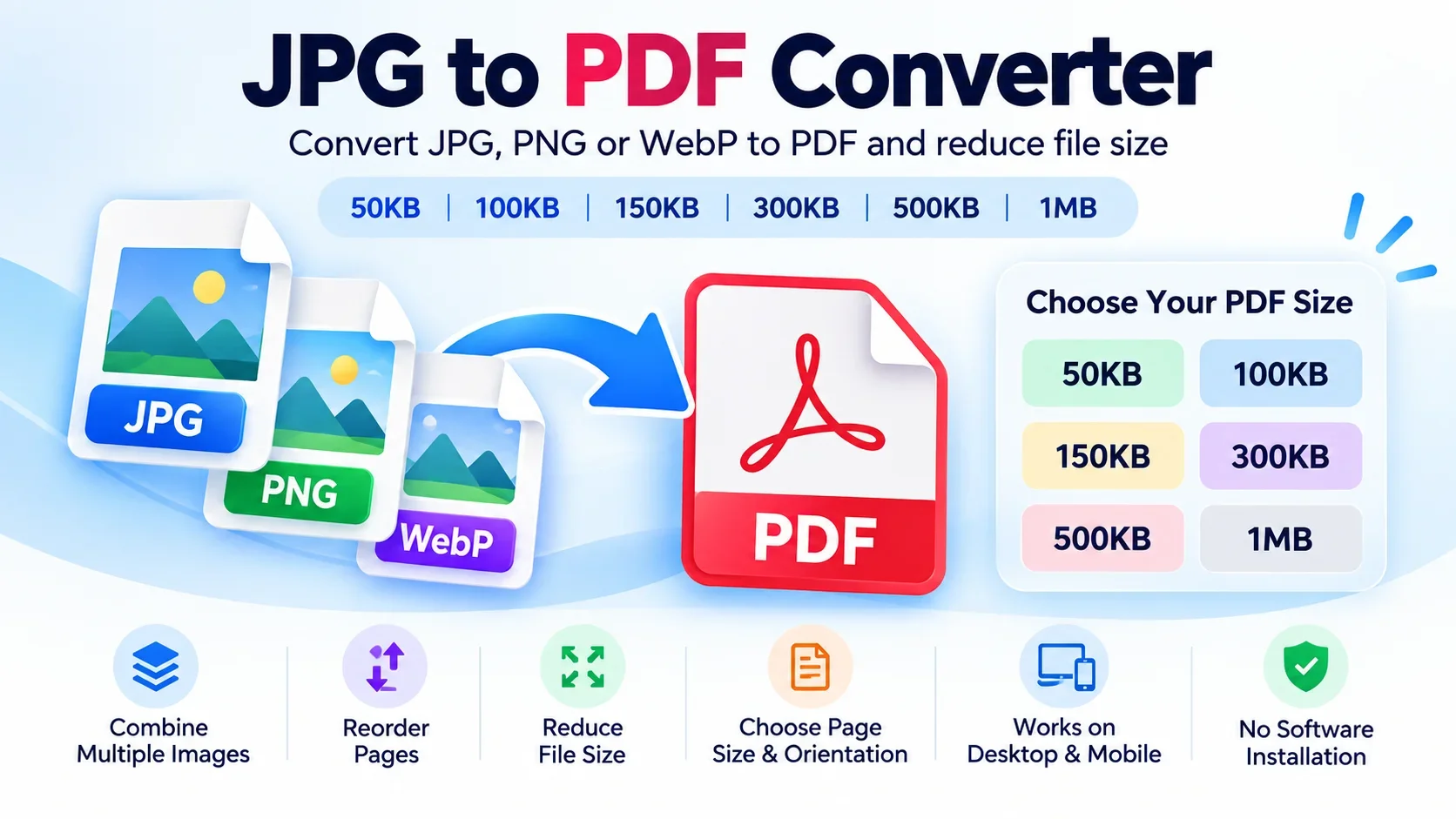
Convert JPG, PNG and WebP images to PDF directly in your browser. Combine multiple images into one PDF, arrange pages, and optimize the resulting file toward a target size such as 50KB, 100KB, 150KB, 300KB, 500KB or 1MB.
No software installation required.
IMPORTANT: Only display claims such as "no signup", "no watermark", "files are automatically deleted", "processed in your browser", or specific supported formats if those features are actually implemented.
What PixDok's Image to PDF Tool Does
-
Convert JPG and JPEG images to PDF
-
Convert PNG images to PDF
-
Convert WebP images to PDF if WebP is supported by the current implementation
-
Combine multiple images into a single PDF
-
Reorder PDF pages if page reordering is implemented
-
Choose portrait or landscape orientation if supported
-
Choose from available paper/page sizes
-
Optimize the PDF toward a selected target file size if target-size optimization is implemented
-
Use the converter from desktop and mobile browsers
Do not display a feature in this list unless it is actually available in the current PixDok tool.
How to Convert JPG to PDF Online
1. Upload your image
Open PixDok's Image to PDF converter and upload a JPG, JPEG, PNG or other supported image.
2. Add additional images
If you need a multi-page PDF, upload multiple images.
3. Arrange your pages
Place the images in the order you want them to appear in the PDF.
4. Select PDF settings
Choose the available orientation, page size and image-quality settings.
5. Select a target file size
If the website where you are uploading the PDF has a file-size limit, choose an appropriate target such as 100KB, 200KB, 300KB, 500KB or 1MB.
6. Create the PDF
Click the conversion button to generate your PDF.
7. Check the final file size
Always check the downloaded PDF before uploading it to another website.
On Android or iPhone
PixDok's Image to PDF converter can be accessed from a supported mobile browser.
On Android, open the page in Chrome and select your image from your gallery or files.
On iPhone, open the page in Safari and select your image from Photos or Files.
After conversion, save or download the generated PDF using your browser's available download/share options.
Do not claim that files are automatically saved to a specific folder on every device. Android and iOS behavior can vary by browser and device.
Which PDF Size Should I Choose?
If a website specifies a maximum file size, it is safer to stay below that limit rather than trying to create a file exactly equal to the maximum.
| Website requirement | Suggested target |
|---|---|
| Maximum 100KB | 80–90KB |
| Maximum 200KB | 170–180KB |
| Maximum 300KB | 250–280KB |
| Maximum 500KB | Around 450KB |
| Maximum 1MB | Around 900KB |
For example, if a website says:
Maximum file size: 100KB
try to create a PDF below 100KB rather than targeting exactly 100KB.
Note that file-size results depend on the source image, dimensions, compression and number of pages.
Also note that 1MB can be interpreted differently by different systems. If a website states a limit in KB, follow the exact unit and limit shown by that website.
JPG to PDF Under 100KB
Need to create a PDF below 100KB?
PixDok can optimize an image-based PDF toward a selected target size when target-size optimization is available.
A 100KB limit can be challenging because smartphone photographs are often several megabytes in size.
For better results:
-
Crop unnecessary borders and background.
-
Use a suitable image resolution.
-
Avoid unnecessarily high quality.
-
Use one image per page when possible.
-
Check that small text remains readable.
-
Verify the final PDF size before uploading.
For documents containing small text, extremely aggressive compression can reduce readability. If the website allows 150KB or 200KB, a slightly larger target may provide a better result.
JPG to PDF 50KB to 100KB
A 50KB to 100KB range can be useful when a website imposes a strict upload limit.
This range is generally more suitable for simple documents, signatures and basic forms than for detailed photographs.
At very small file sizes, photographs may show noticeable quality loss.
For text-heavy documents, prioritize readability over achieving the smallest possible file.
JPG to PDF 150KB and 200KB
A 150KB or 200KB target provides more room than a 100KB limit.
This can offer a better balance between file size and readability for scanned documents, certificates, forms and other single-page documents.
If the upload portal allows a larger file, using 150KB or 200KB may produce a more readable result than aggressively compressing the document to 100KB.
JPG to PDF 100KB to 300KB
If a website allows a PDF of up to 300KB, a target around 250KB can provide some safety below the maximum.
For multi-page documents, remember that the target applies to the entire PDF, not each individual page.
For example, a five-page PDF with a 300KB total limit has substantially less space available per page than a single-page PDF.
JPG to PDF 500KB and Under 1MB
A 500KB or 1MB limit provides considerably more room for image quality than a 50KB or 100KB limit.
These larger targets can be useful for:
-
Multi-page documents
-
Certificates
-
Scanned records
-
Forms
-
Documents containing photographs
-
Higher-quality image-based PDFs
If the website specifies a maximum of 1MB, keeping the resulting file around 900KB or lower can provide a reasonable safety margin.
Convert Multiple JPG Images to One PDF
PixDok can combine multiple supported images into a single PDF when multi-image conversion is enabled.
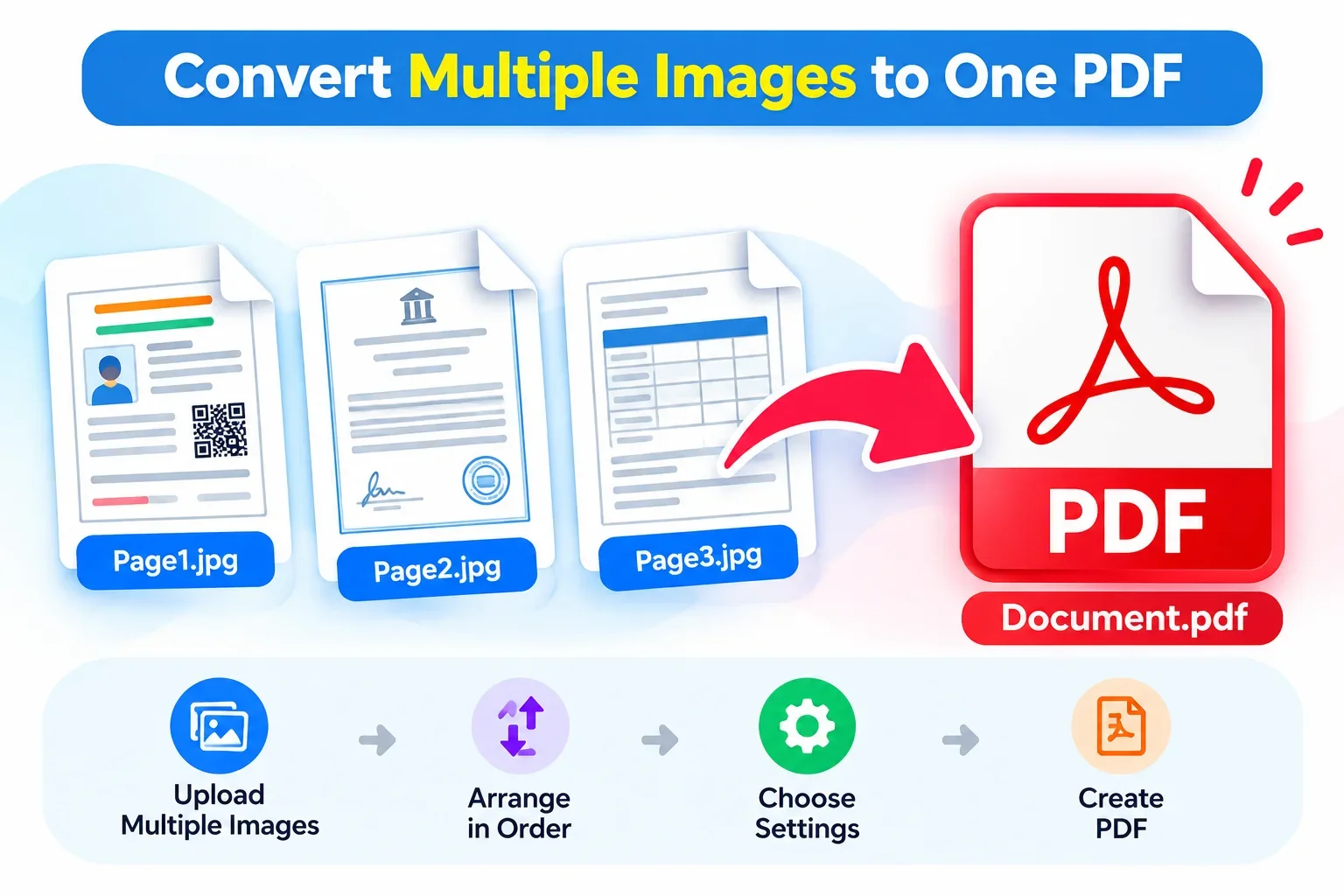
For example:
Page1.jpg
Page2.jpg
Page3.jpg
can become:
Document.pdf
This is useful for:
-
Scanned forms
-
Receipts
-
Certificates
-
Notes
-
Application documents
-
Multi-page records
Remember that every additional page contributes to the final PDF size.
PNG and WebP to PDF
PNG images can also be converted to PDF.
PNG is commonly used for screenshots, graphics and scanned images. Depending on the source, PNG files can be larger than JPG files.
WebP can also be supported if the current PixDok implementation accepts WebP uploads.
IMPORTANT: Claude should verify actual WebP support in the production tool before publishing this claim.
Need to Compress an Existing PDF to 100KB?
If you already have a PDF and need to reduce its size, you do not necessarily need to convert it from an image again.
Instead, use PixDok's PDF Compressor.
This is particularly useful when:
-
You already have a PDF.
-
The PDF is slightly above the upload limit.
-
You need to reduce an existing multi-page PDF.
-
You do not have the original JPG files.
Convert JPG, PNG and other images into high-quality PDF documents in seconds. Combine multiple images into a single PDF with custom page sizes and margins.
Free Image to PDF Converter →
Image to PDF Converter: Free Download or Online?
If you searched for an image to PDF converter free download, you may not need to install desktop software.
PixDok provides a browser-based image-to-PDF tool, allowing you to convert supported images without installing a separate desktop application.
This can be useful on:
-
Shared computers
-
Office computers
-
Cyber cafe computers
-
School computers
-
Devices where software installation is restricted
Is My File Private?
IMPORTANT: Claude/Antigravity MUST replace this section with PixDok's actual data-processing behavior.
Use wording that accurately describes the implementation.
If files are uploaded to PixDok's server, clearly state:
-
Whether files are uploaded to the server
-
How long temporary files are retained
-
When files are deleted
-
Whether files are used for any other purpose
-
Where users can read the complete Privacy Policy
If files are processed entirely inside the browser, state that clearly instead.
Do not claim browser-only processing unless the production implementation actually performs the conversion locally.
Do not claim automatic deletion unless server-side cleanup has been implemented and verified.
[Read PixDok Privacy Policy →]
Why Is My PDF Still Larger Than I Wanted?
Several factors affect PDF file size.
High-resolution images
A modern smartphone photograph may contain millions of pixels and can be several megabytes.
Multiple pages
Every additional image increases the total PDF size.
Detailed photographs
Photographs and noisy images can be harder to compress than simple black-and-white documents.
High quality
Higher image quality generally produces larger files.
Large image dimensions
An unnecessarily large image may contain more data than the final document needs.
What you can try
-
Crop unnecessary areas.
-
Reduce image dimensions.
-
Lower image quality.
-
Use fewer pages where appropriate.
-
Compress the resulting PDF.
-
Check the final file size before uploading.
Treat target size as an optimization goal. Results can vary depending on the source image.
Tips for Creating a Small, Readable PDF
1. Take the photograph in good lighting
A clean, well-lit document is easier to read and can compress more effectively.
2. Crop unnecessary background
Remove tables, floors, walls and other areas that are not part of the document.
3. Avoid excessive resolution
Do not use a huge image when the website only needs a small document.
4. Keep text readable
A very small PDF is not useful if the text becomes unreadable.
5. Check the final file
Always confirm the PDF's final file size before uploading it to an application or portal.
Frequently Asked Questions
Upload your JPG image to PixDok's Image to PDF converter, choose an appropriate target below 100KB when available, create the PDF and check the downloaded file size.
Not reliably. PDF size depends on the source image, dimensions, compression and PDF structure. If a website has a maximum 100KB limit, it is safer to target a size below 100KB.
Upload your image, select a target within the supported range and create the PDF. Smaller targets may require stronger compression and can reduce image quality.
Yes. Choose an appropriate target such as 200KB or 250KB if those options are available, then check the final file size.
Yes. Select an appropriate target below 1MB when the target-size option is available. Around 900KB can provide a safety margin for a 1MB maximum.
Yes, if multi-image conversion is enabled. Upload multiple images, arrange them in the required order and create a single PDF.
No. PixDok's image-to-PDF converter is browser-based, so a separate desktop application is not required.
Yes, if PNG upload is enabled in the current PixDok implementation.
Yes, if WebP is supported by the current PixDok implementation. Verify this before publishing the claim.
Try reducing the image dimensions, lowering the quality setting or using PixDok's PDF Compressor if the PDF has already been created.
No. PixDok is an independent online document and image tools platform.
Related PixDok Tools
Explore other PixDok tools:
If your converted PDF is slightly above the required size, try the Compress PDF tool.
Convert JPG to PDF Now
Create a PDF from one image or multiple images and optimize it toward the file-size requirement you need.