
-
All Tools
From this to this
in seconds!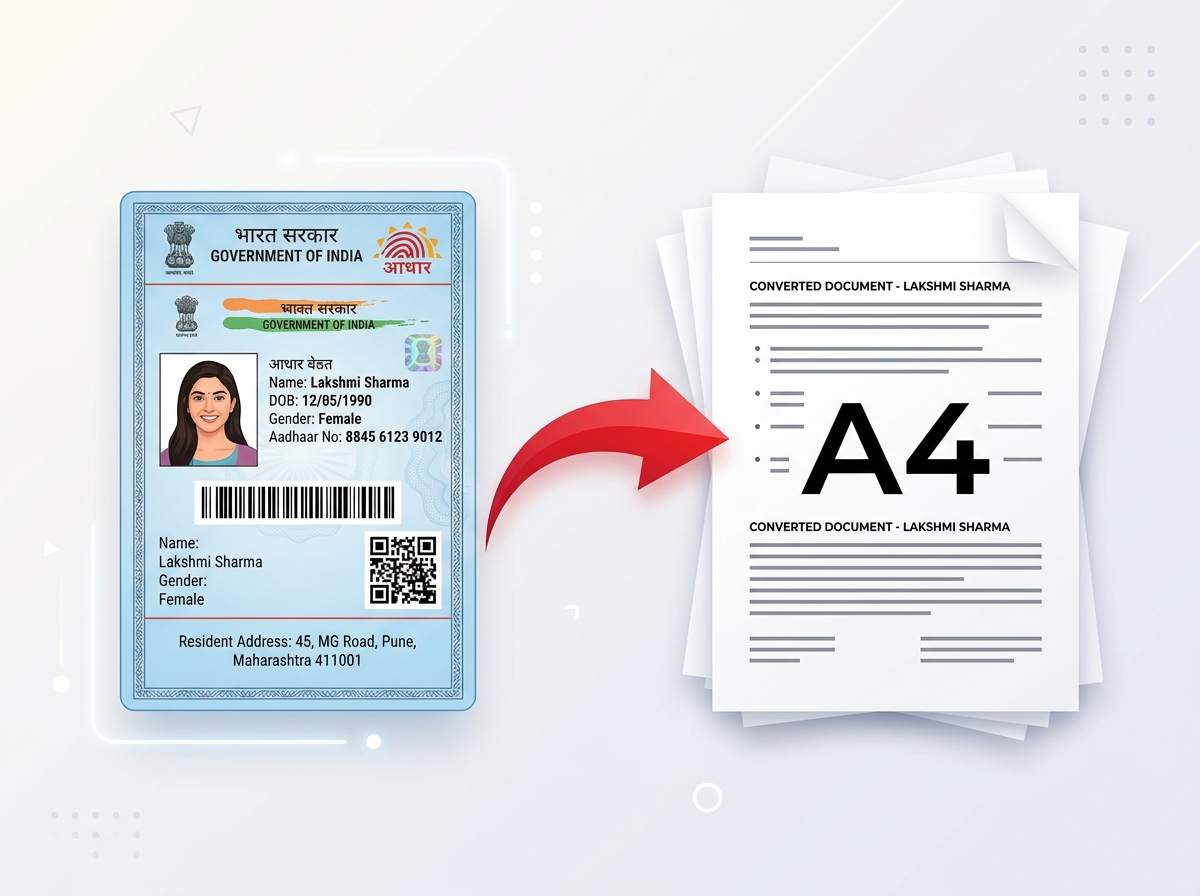 Try It NowReady to Print on A4Preserve Original SizeClean & Clear Output
 - PDF Tools
- Card Tools
- Image Tools
- Convert Tools
- QR Tools
Free PDF
Editor Online
Edit, annotate, sign and manage your PDF files directly in your browser. Add text, images, highlights, drawings, rotate pages, search content, and save your edited PDF online for free.
Project Proposal
ABC Company

Powerful PDF Editor – All in Your Browser
Everything you need to edit and manage PDF files in one place. Simple, fast and free.
Free PDF Editor Online – Fast, Private, In-Browser Document Editing
PixDok PDF Editor is a free online tool engineered to make modifying PDF documents effortless, accessible, and fast. Traditional desktop PDF software often requires expensive licenses, lengthy installations, or complex setup. With PixDok, you can open, modify, and export your PDF files directly in modern desktop and mobile web browsers without installing additional software.
Whether you need to correct typographical errors in an existing report, insert custom text blocks, place corporate logos and images, highlight important terms, add freehand annotations, or sign agreements digitally, PixDok provides an intuitive suite of editing tools right at your fingertips. All page rendering, text selection, and canvas drafting operate directly within your browser session, helping ensure your documents remain private and secure.
Once you finish adjusting your document layout and editing your text or graphics, PixDok compiles your edits cleanly and allows you to download your high-quality updated PDF file immediately to your computer, tablet, or smartphone.
What Can You Do With PixDok PDF Editor?
Discover the full suite of genuine tools available inside PixDok to edit, annotate, and customize your PDF documents.
Edit PDF Text
Modify existing text directly within your PDF. Click any detected text block to adjust phrasing, fix typos, backspace letters, or move text blocks across the canvas with automatic bounding box expansion.
Add Text to a PDF
Insert new custom text blocks anywhere on your document pages. Choose from standard typography (Inter, Arial, Times New Roman, Courier New), adjust font sizes, apply bold/italic/underline styles, set alignment, and choose custom colors.
Add Images to PDF
Easily insert PNG, JPEG, and WebP images onto your PDF pages. Position, resize, and place business logos, signature stamps, photos, or diagrams exactly where you need them.
Sign PDF Online
Create and apply digital signatures directly to official contracts, onboarding forms, and legal agreements using your mouse, trackpad, or touchscreen.
Highlight and Annotate PDFs
Apply translucent colored highlight overlays over sentences, data points, or tables to emphasize crucial information for study guides, reviews, and audits.
Draw on a PDF
Use freehand drawing tools with customizable line colors and stroke widths to sketch notes, circle elements, cross out data, or mark up architectural plans and proofs.
Rotate and Organize PDF Pages
Correct improperly oriented scans with 90-degree, 180-degree, and 270-degree page rotation tools. Preview thumbnails in the sidebar and arrange your document cleanly.
Search and Replace PDF Text
Quickly search for specific terms or keywords across all pages in your document. Find text matches instantly and replace terms across your file with a single click.
How to Edit a PDF Online for Free
Follow four simple steps to edit, annotate, and save your PDF documents in seconds.
Upload your PDF
Drag and drop your document into the upload zone or click "Choose PDF" to select a file from your local storage.
Edit your PDF
Select any tool from the top toolbar to edit existing text, insert new paragraphs, upload photos, draw signatures, highlight lines, or sketch freehand markings.
Review your changes
Navigate through document pages using the sidebar thumbnails, zoom in or out for precision, rotate any misaligned pages, and preview all applied changes.
Save your PDF
Click the "Save PDF" button in the upper-right corner. PixDok embeds your changes and immediately downloads the modified PDF file to your device.
Who Can Use an Online PDF Editor?
PixDok PDF Editor is built for anyone who works with digital documents daily.
Students and Teachers
Annotate research papers, fill out academic forms, highlight textbooks, and mark up study notes without needing printer paper or desktop software.
Freelancers and Contractors
Add client details to invoices, sign non-disclosure agreements, insert logos into proposals, and send finalized PDFs back to clients promptly.
Office and Business Administration
Update company handbooks, correct figures on quarterly reports, sign vendor contracts, and standardize organizational documentation with ease.
Job Applicants and Personal Use
Update dates and phone numbers on resumes, fill out rental applications, sign government forms, and organize personal records securely.
Free PDF Editor for Android and Mobile
Need to edit a document on the go? PixDok PDF Editor is fully responsive and optimized for modern mobile web browsers across Android smartphones, iPhones, iPads, and Android tablets.
- No App Installation: Access the editor directly in Chrome, Safari, Firefox, or Edge on your mobile device.
- Touch-Friendly Controls: Tap to select text, zoom with standard controls, draw signatures with your finger, and add annotations smoothly.
- Instant Downloads: Save and download your edited PDF directly to your device's Files or Downloads folder.
Edit PDF Anywhere
Open, edit text, add signatures, and download PDF documents directly from your phone browser.
Can I Edit PDF Text and Keep the Same Font?
When you edit existing text in a PDF document, PixDok detects the underlying font properties and maps them to standard universal typography such as Inter, Arial, Helvetica, Times New Roman, Courier New, Georgia, and Verdana. Because PDF files often embed custom subset fonts that cannot always be re-synthesized for arbitrary new glyphs, PixDok allows you to easily match or adjust the font family, font size, weight, and color directly from the floating formatting toolbar to ensure your edited text blends harmoniously with the original layout.
Frequently Asked Questions
Find quick answers about using PixDok PDF Editor online.