

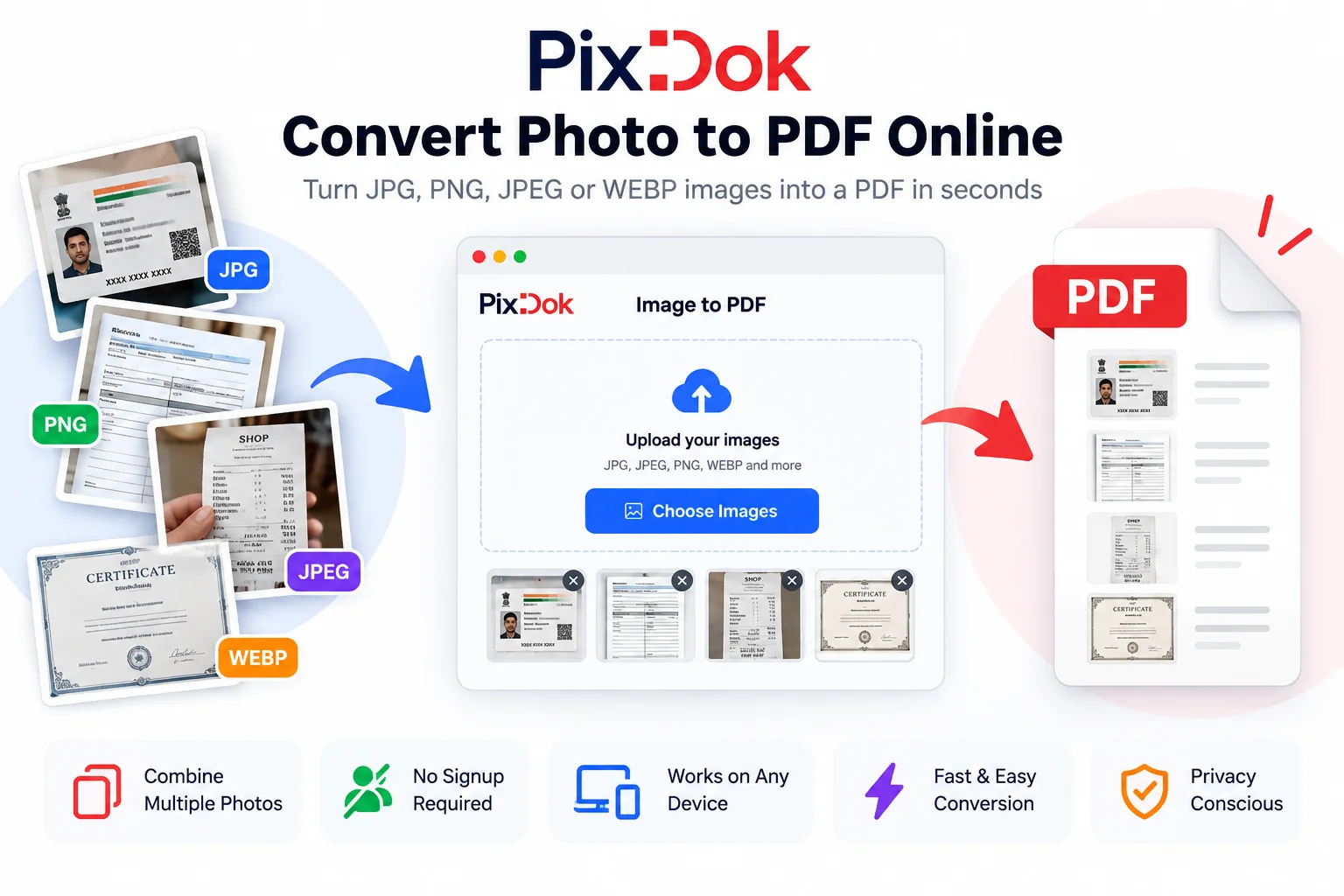
Want to convert photo to PDF online for free? You can upload your JPG, JPEG, PNG, or WEBP image to an image-to-PDF converter and create a PDF directly in your browser.
Need to turn a photo of a document, receipt, form, certificate, or other image into a PDF? Converting an image to PDF can make it easier to upload, print, email, share, and keep multiple pages together in one file.
Convert Your Photo to PDF with PixDok
If you want to convert an image right now, you can use PixDok's free Image to PDF converter.
It lets you convert supported image files into a PDF directly in your browser, without installing separate software or creating an account.
Convert Photo to PDF with PixDok →
Process your files with studio quality in your browser with zero registration required.
Try PixDok Tool NowWhy use PixDok?
-
It lets you convert supported image files into a PDF directly in your browser,Multiple images: Combine several photos into one PDF when you have a multi-page document.
-
No signup required: Upload, convert, and download without creating an account.
-
Works in your browser: Use the tool from a desktop, phone, or tablet.
-
Simple workflow: Upload your images, arrange them if necessary, and create your PDF.
-
Privacy-conscious: Files are handled according to PixDok's privacy practices. See the PixDok Privacy Policy for information about file handling and retention.
PixDok also provides other browser-based document and image utilities, including PDF compression, PDF merging, and image resizing.
Why Convert a Photo to PDF?
JPG, PNG, and other image formats are convenient for taking and sharing pictures, but PDF is often more suitable when the image represents a document.
You might want to convert a photo to PDF when you need to:
-
Submit a photographed document online
-
Send a receipt or invoice by email
-
Share a form or application
-
Create a printable document
-
Combine several photographed pages into one file
-
Keep scanned paperwork organized
-
Upload documents to a website
-
Send multiple pages as a single attachment
For example, if you photograph a three page application form, you can combine the three images into one PDF instead of sending three separate JPG files.
How to Convert a Photo to PDF Online
The process is straightforward.
Step 1: Choose your photo
Select the image you want to convert.
Depending on the tool you use, this could be a JPG, JPEG, PNG, WEBP, or another supported image format.
Before uploading, make sure the photograph is clear enough to read. A PDF conversion cannot fix an image that is already blurry or badly exposed.
Step 2: Open PixDok's Image to PDF converter
Open the PixDok Image to PDF converter in your browser.
You don't need to install a PDF application just to convert an image.
Step 3: Upload your image
Select the photo from your computer, phone, or tablet.
If you are converting a multi page document, upload the images for all of the pages.
Step 4: Check the page order
When using multiple images, make sure the pages appear in the correct order.
For example:
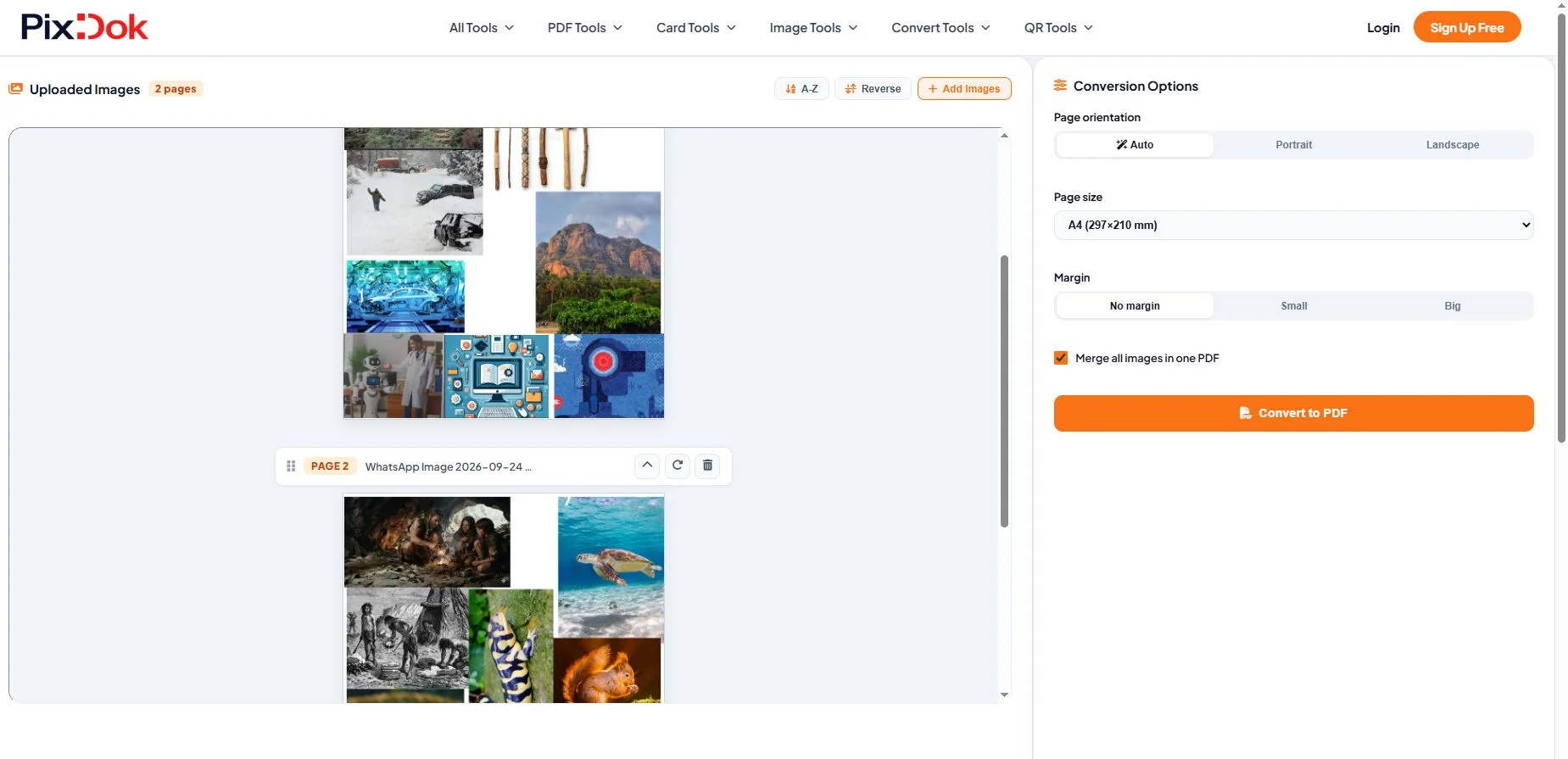
This is especially important for applications, forms, certificates, and other documents where page order matters.
Step 5: Create the PDF
Start the conversion process.
The images will be processed and combined into a PDF document.
Step 6: Check the finished PDF
Before submitting or sharing the file, open the PDF and check:
-
Is all the text readable?
-
Are the pages in the correct order?
-
Is the image orientation correct?
-
Has anything important been cropped?
-
Are signatures, numbers, and other details visible?
If everything looks correct, your PDF is ready to use.
How to Convert JPG to PDF
JPG is one of the most common formats used for photographs and phone camera images, so JPG to PDF conversion is useful for many everyday tasks.
For example, suppose you photograph a two-page form.
You could have:
form-page-1.jpg
form-page-2.jpg
Instead of uploading two separate image files, you can combine them into:
form.pdf
This gives you one document that is easier to upload, email, print, or archive.
The same approach works when you have several photos that belong to the same document.
Can You Combine Multiple Photos Into One PDF?
Yes, if the image-to-PDF converter supports multiple files.
This is useful when each photograph represents a separate page.
For example:
5 photos → 1 PDF
You can photograph five pages of a document and combine them into one PDF instead of managing five separate image files.
Always check the page order before creating the final document.
If you are converting an important application or official paperwork, opening the finished PDF and checking every page is a good habit.
What Image Formats Can Be Converted to PDF?
The formats supported depend on the converter.
Common image formats used for PDF conversion include:
-
JPG
-
JPEG
-
PNG
-
WEBP
-
BMP
-
TIFF
However, you should always check the supported formats of the specific tool you're using.
For PixDok, use the formats supported by the Image to PDF tool shown on the upload page.
JPG and PNG are particularly common because they are widely supported by phones, cameras, screenshots, and document-scanning apps.
How to Convert a Photo to PDF on a Phone
You don't need a computer to convert an image to PDF.
A browser-based converter can be used directly from a smartphone.
The basic process is:
-
Open PixDok's Image to PDF tool in your mobile browser.
-
Select the photo from your phone's gallery or files.
-
Upload the image.
-
Add additional images if you need a multi-page PDF.
-
Check the page order.
-
Create the PDF.
-
Download or save the resulting file.
This can be particularly useful when you photograph a receipt, form, application, or other document while you're away from your computer.
How to Take a Better Photo Before Converting It to PDF
The quality of the original photograph has a major effect on the final PDF.
Use good lighting
Try to photograph the document in even lighting.
Avoid strong shadows across important text.
Keep the camera straight
Hold your phone directly above the document when possible.
Taking a picture from a sharp angle can make the page look distorted.
Keep the entire document in the frame
Make sure the edges of the document are visible before taking the photograph.
A cropped corner can mean missing information after conversion.
Make sure text is readable
Zoom in on the photograph before converting it.
If the text is already blurry in the original image, converting it to PDF won't automatically make it sharper.
Keep the background clean
Place the document on a relatively flat, clean surface so that the edges are easy to distinguish.
Avoid unnecessarily huge images
Modern phones can produce very large photographs.
A high-resolution image can result in a larger PDF file, which may be inconvenient when uploading or emailing it.
If the resulting PDF is too large, you can use a PDF compression tool afterward.
Photo to PDF vs. Scanned PDF
A photograph converted to PDF is not necessarily the same as a professionally scanned document.
A photographed document may contain:
-
Perspective distortion
-
Shadows
-
Uneven lighting
-
Background objects
-
Camera noise
-
Reflections
A scanner generally captures a document under more controlled conditions.
That doesn't mean a photo-to-PDF conversion is unsuitable.
For everyday documents such as receipts, forms, notes, applications, and basic paperwork, a clear photograph can often be converted into a perfectly usable PDF.
For important submissions, always check whether the organization receiving the document has specific scanning, resolution, file-size, or document-format requirements.
Does Converting an Image to PDF Reduce Quality?
It can, depending on the conversion process and settings.
The PDF itself is a container format, so the quality of the image inside it depends on how the image is processed.
For example, compression may reduce file size but can also affect image quality.
If your document contains small text, signatures, stamps, photographs, or fine details, open the finished PDF and zoom in before submitting it.
A good workflow is:
Original photo → Convert to PDF → Check quality → Compress if necessary
If the PDF is already a reasonable size, there may be no need to compress it further.
Is It Safe to Upload Documents to an Online Converter?
This is an important question, particularly when your document contains personal or confidential information.
Before uploading a document to an online file converter, check the service's privacy information and understand how uploaded files are handled.
Things worth checking include:
-
Whether uploaded files are stored
-
How long files are retained
-
Whether files are automatically removed
-
How files are transferred
-
Whether uploaded content is used for other purposes
Don't upload sensitive documents to an unfamiliar service simply because it offers a free conversion.
For PixDok, you can review the Privacy Policy to understand its approach to uploaded files and data.
Common Reasons to Convert Photos to PDF
Image-to-PDF conversion is useful in many everyday situations.
Documents and applications
You may photograph a completed form and need to submit it as a PDF.
Receipts and invoices
Converting receipts into PDFs can make them easier to organize and share.
Certificates and paperwork
A photographed certificate or document can be kept as a PDF for easier storage and sharing.
School and college documents
Students may need to submit photographed assignments, forms, or supporting documents as PDFs.
Business paperwork
Businesses can combine photographs of multiple pages into one PDF before sending them to a client or colleague.
Mobile document sharing
If you only have your phone available, converting photographs into a PDF can be a convenient way to create a single document without using a computer.
Frequently Asked Questions
Upload your JPG, JPEG, PNG, WEBP, or other supported image to an image-to-PDF converter, arrange multiple pages if necessary, and create the PDF. Check the resulting document before submitting or sharing it.
Yes. PixDok's Image to PDF converter is available to use for free, with no account required.
Yes. When a converter supports multiple images, you can upload several photos and combine them into a single PDF. Check the page order before creating the final document.
Yes. You can use a browser-based image-to-PDF converter from an Android phone or iPhone. You don't necessarily need to install a separate application.
Image-to-PDF tools commonly support formats such as JPG, JPEG, PNG, and WEBP. Some tools also support formats such as BMP and TIFF. Check the supported formats of the converter you're using.
It can, depending on the conversion and compression settings. If quality is important, open the finished PDF and check small text, signatures, photographs, and other important details before submitting it.
Yes. PixDok's Image to PDF tool is free to use in your browser and does not require software installation or account signup.
Yes. A screenshot is an image, so it can generally be converted to PDF using an image-to-PDF converter, provided the image format is supported.
No. A browser-based image-to-PDF converter can perform the conversion without requiring desktop PDF software.
Final Thoughts
Converting a photo to PDF is a simple way to turn images into a more convenient document format.
Whether you're working with a receipt, form, certificate, application, scanned page, or several photographs, an online image-to-PDF converter can help you create a single PDF without installing specialized software.
For the best result, start with a clear photograph, make sure multiple pages are in the correct order, and always check the finished PDF before submitting or sharing it.
If you need to convert an image right now, you can use PixDok's free Image to PDF converter directly in your browser.