
-
All Tools
From this to this
in seconds!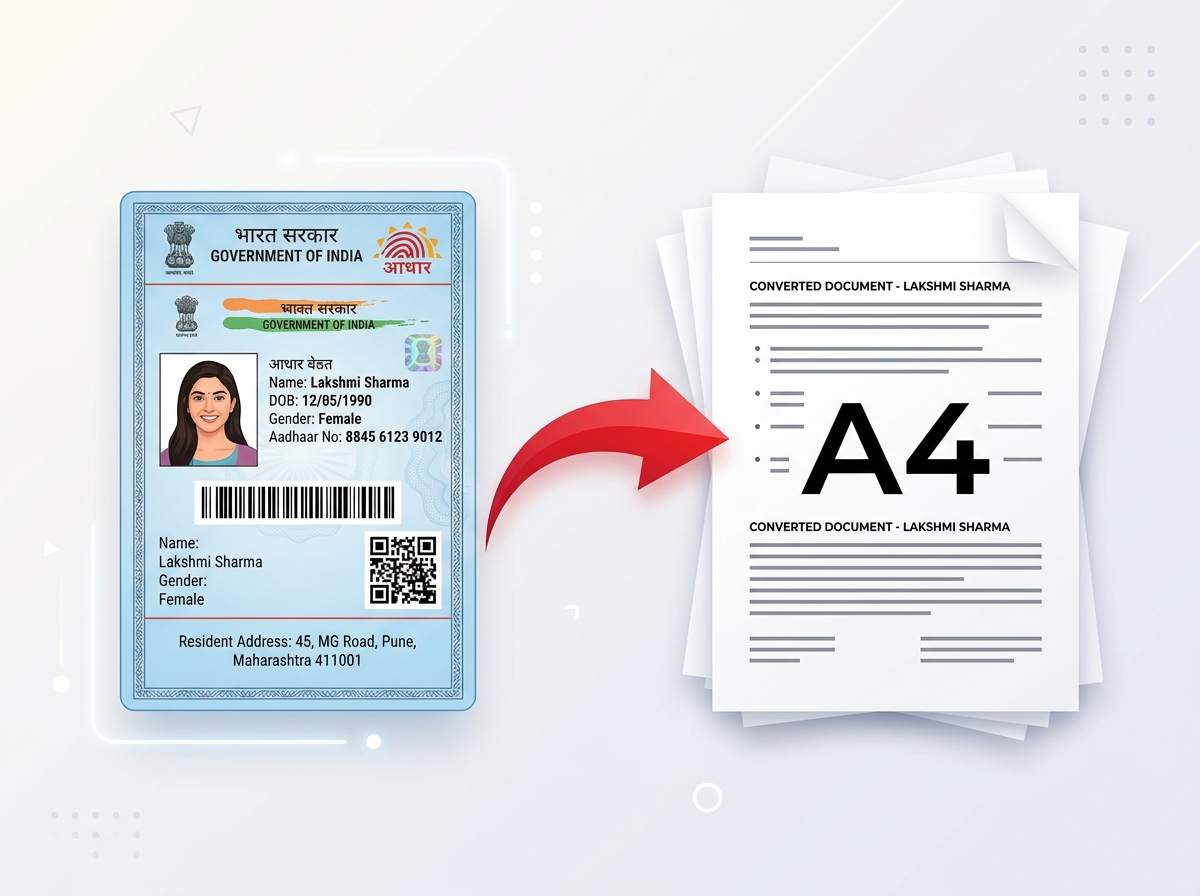 Try It NowReady to Print on A4Preserve Original SizeClean & Clear Output
 - PDF Tools
- Card Tools
- Image Tools
- Convert Tools
- QR Tools
Convert HEIC images to JPG, PNG or WebP in seconds. Works directly in your browser with no quality loss, no registration, and no file uploads whenever possible.
Drag & drop files here, or click to browse
Local in-browser conversion powered by Web Workers. Zero upload waiting time.
Your photos stay inside your local device memory and are never sent to third-party servers.
Advanced decoding preserves color profiles, sharp details, and camera EXIF data.
Select up to 100 images simultaneously and package converted files in a single 1-click ZIP.
Follow 3 simple steps to convert your iPhone photos instantly.
Drag and drop your HEIC or HEIF images into the converter box above or click Browse Files.
Choose JPG, PNG, or WebP format, set desired output quality, and toggle EXIF metadata preservation.
Click Convert to transform your images and download them individually or as a complete ZIP package.
HEIC (High Efficiency Image Container) is an image file format introduced by Apple in iOS 11 and macOS High Sierra. Based on the HEVC (High Efficiency Video Coding) compression standard, HEIC allows iPhones to capture rich 16-bit color photos using roughly half the storage space of traditional JPEGs.
By default, modern iPhone cameras store photos in HEIC format so users can fit twice as many pictures on their device. HEIC also supports live photo sequences, burst shots, transparency, and embedded depth maps for portrait mode photography.
Despite its efficiency, HEIC is poorly supported outside the Apple ecosystem. Many Windows PCs, Android devices, photo printing centers, email clients, and online forms cannot open HEIC files. Converting HEIC to JPG ensures 100% universal compatibility everywhere.
A detailed side-by-side technical comparison between HEIC and JPG formats.
| Feature | HEIC | JPG (JPEG) |
|---|---|---|
| File Size | Smaller (Up to 50% lighter) | Larger file size |
| Image Quality | Excellent (16-bit color support) | Very Good (8-bit color) |
| Browser Support | Limited (Apple devices only) | Universal (100% of browsers) |
| Editing Support | Limited in legacy software | Supported by all photo editors |
| Printing | Unsupported at most kiosks | Universal printer compatibility |
| Social Media & Web Uploads | Often rejected by forms | Fully supported everywhere |
PixDok HEIC Converter runs in any HTML5 web browser across all desktop and mobile platforms:
PixDok converts HEIC images directly in your browser whenever possible using modern WebAssembly technology. Your photos never leave your device unless your browser requires a secure fallback conversion. Temporary processing memory is automatically cleared immediately after every session.
Discover why thousands of users choose PixDok for their image and document conversions:
Frequently asked questions about HEIC and image conversion.
Side-by-side preview of original HEIC photo vs converted result.