
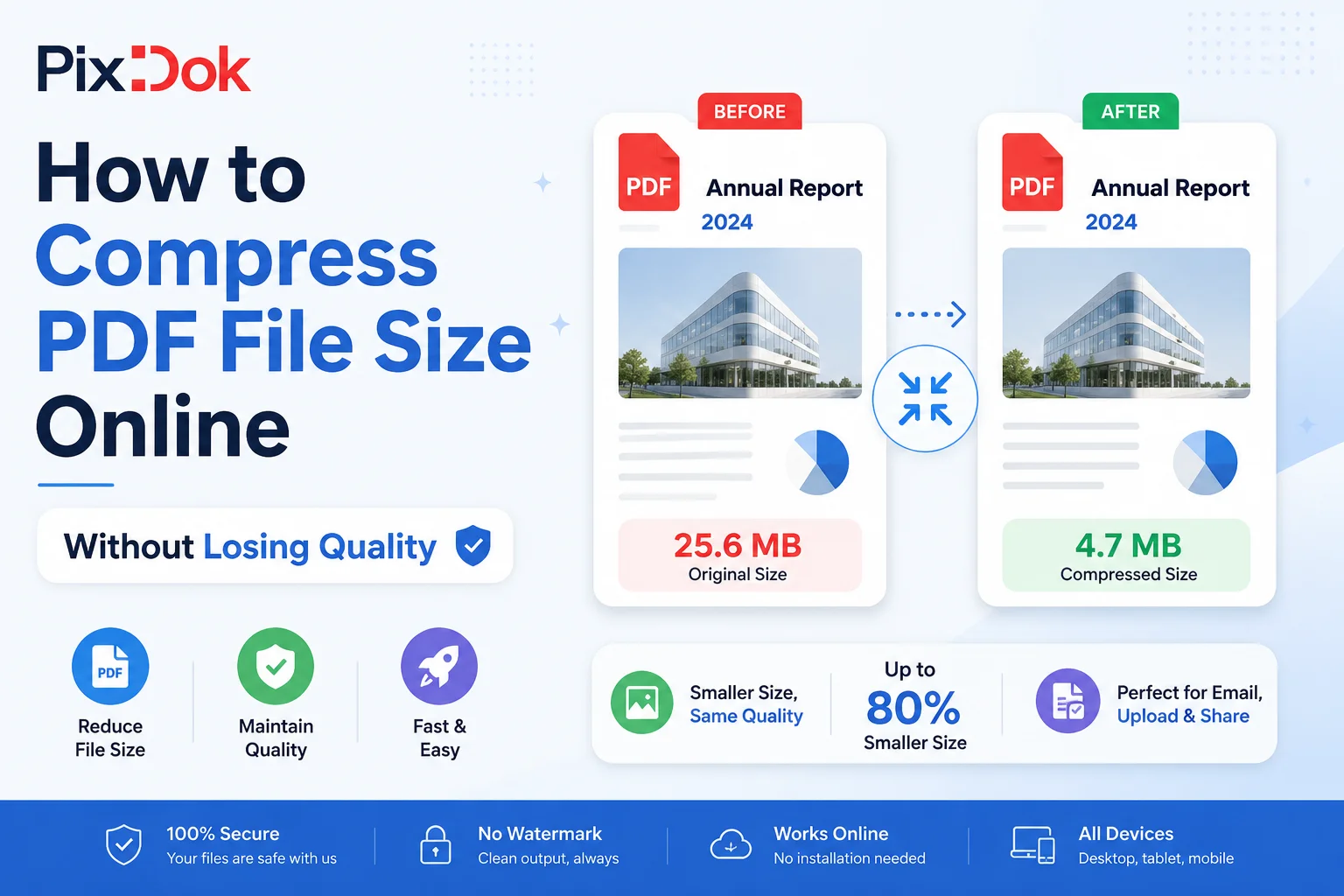
Have you ever tried sending an urgent email or submitting an application online, only to be stopped by the dreaded message: "File size exceeds the limit"?
Large PDF files packed with high-resolution scans, colorful graphics, embedded fonts, and unoptimized images can easily spike beyond typical email limits (usually 25 MB) or strict government and portal upload thresholds (often 500 KB to 2 MB).
The good news? You don’t need to sacrifice image clarity or text crispness to shrink your documents. In this comprehensive guide, we will break down how to compress PDF file size online without losing quality, explain the exact technology behind smart PDF optimization, and share best practices for getting the smallest file possible.
Why PDF Files Get So Large
Before diving into how to shrink your files, it helps to understand why PDFs become so bloated in the first place:
-
Uncompressed High-DPI Scans: Standard desktop scanners often digitize pages at 300 to 600 DPI (dots per inch). While great for fine art printing, 600 DPI is far higher than what standard computer screens require (typically 72 to 150 DPI).
-
Embedded Fonts & Duplicate Subsets: If a document uses multiple custom fonts, full copies of those font files are embedded directly into the PDF structure, adding unnecessary megabytes.
-
Hidden Metadata and Cache: Historical edit history, thumbnail caches, and leftover metadata streams accumulate inside the file without providing any visible value to the reader.
-
Unoptimized Vector Paths and Artwork: High-detail vector graphics and uncompressed background streams balloon file sizes significantly.
Process your files with studio quality in your browser with zero registration required.
Try PixDok Tool NowHow PDF Compression Works: The Science Behind Quality Loss Prevention
Not all compression methods are created equal. Compression generally falls into two categories:
-
Lossy Compression: Permanently discards certain data (like image details) to reduce size. If pushed too far, lossy compression turns text blurry and images pixelated.
-
Lossless & Smart Vector Compression: Reduces file footprint by re-encoding data structures and stripping unnecessary metadata without changing visible pixel quality.
[ Uncompressed PDF (~15 MB) ]
            │
            ├──▸ 1. Downsample High-Res Images (600 DPI → 150-200 DPI)
            ├──▸ 2. Stream Data Deflation (Font & Metadata Cleanup)
            └──▸ 3. Vector Path Optimization
            │
            ▼
[ Optimized PDF (~2 MB - Crisp & Sharp) ]
When you use a modern browser-based tool like PixDok Compress PDF, three core engineering processes happen in real-time:
1. Smart Image Downsampling
Instead of destroying image pixels, smart engines adjust embedded raster graphics to a screen-optimal resolution (typically 150–200 DPI). This delivers a razor-sharp visual experience on monitors, tablets, and standard office printers while slashing file size by up to 70–80%.
2. Stream Data Deflation
PDFs store structural details in data streams. "Flate" compression (a lossless data compression algorithm) shrinks font tables, vector paths, and page structure arrays without losing a single line of text precision.
3. Orphaned Resource Cleanup
Unused font glyphs, redundant metadata tags, and legacy thumbnail streams are safely purged from the background structure, leaving behind only the pure document layout.
Step-by-Step Guide: How to Compress PDFs Online in 4 Easy Steps
Optimizing your document doesn't require complex software like Adobe Acrobat Pro or heavy desktop installations. Follow this quick tutorial using the PixDok PDF Tool:
Comparing PDF Compression Tools
| Feature | PixDok AI PDF Tools | Traditional Online Converters | Heavy Desktop Apps |
| Cost | 100% Free | Free with daily limits | Paid Subscription |
| Watermarks | None | Often added on free plans | None |
| Privacy / Security | Browser-First / Encrypted | Cloud storage upload | Local processing |
| Quality Preservation | Smart Vector Guard | Aggressive pixelation | High control, complex UI |
| Account Required | No | Mandatory sign-up | License key required |
Best Practices for Keeping PDF File Sizes Small
If you frequently generate PDFs from Microsoft Word, Google Docs, or Canva, keeping these tips in mind will ensure small files from the start:
Pro Tip: When exporting from Word or Google Docs, select "Save as PDF (Standard / Online Publishing)" rather than "Best for Printing". This automatically caps embedded image resolution at web-friendly limits before you even compress!
-
Flatten Unnecessary Layers: If your PDF contains multi-layer vector designs or dynamic form fields that are no longer needed, flatten them before sharing.
-
Scan in Grayscale or Monochrome: Unless color is essential, scanning text documents in Grayscale (200 DPI) produces crystal-clear documents at a fraction of the file size of full-color scans.
-
Use System-Standard Fonts: Common fonts like Arial, Times New Roman, and Helvetica don't require full embedded font dictionaries, saving valuable kilobytes across long multi-page reports.
Frequently Asked Questions (FAQ)
Will compressing a PDF make scanned text blurry?
No. PixDok uses smart vector preservation that isolates text characters from image streams, keeping borders razor-sharp while optimizing only heavy background graphic data.
Is it safe to compress sensitive PDFs online?
Yes. Modern online PDF tools process your files over end-to-end encrypted HTTPS connections, with automated cleanup routines that permanently delete uploaded files shortly after processing.
What is the maximum file size limit for email attachments?
Most major email providers (such as Gmail, Outlook, and Yahoo) cap attachment limits at 25 MB. Compressing your files ensures your emails deliver smoothly without bouncing back.
Can I compress a password-protected PDF file?
You will need to unlock or enter the password for encrypted PDFs before the compression engine can parse and optimize internal data streams.
Conclusion
Large PDF files don't have to slow you down, clog your inbox, or trigger frustrating upload errors on application portals. With modern stream deflation and smart downsampling, you can dramatically shrink file sizes while keeping your text and visuals sharp.
Ready to optimize your documents in seconds? Try the PixDok Compress PDF Tool today 100% free, no watermarks, and zero registration required!