

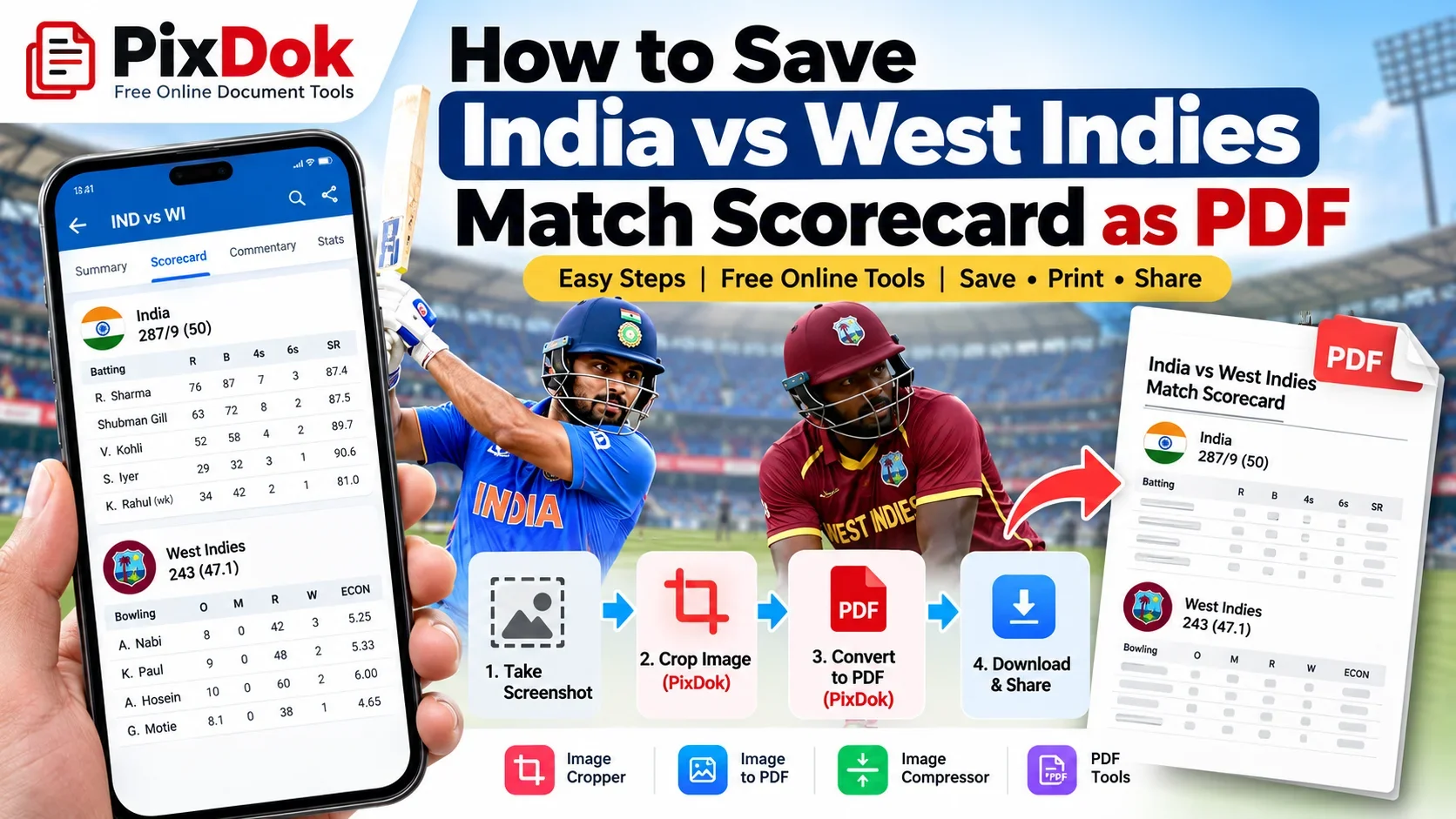
Want to save the India vs West Indies match scorecard as a PDF so you can keep it, print it, share it on WhatsApp, or access it later?
You can easily save a cricket scorecard from your phone or computer and convert a screenshot into a clean PDF using a free online tool.
Whether you're following an ODI, T20I, or another India vs West Indies match, this guide explains several simple ways to save the scorecard as a PDF.
Why Save a Cricket Match Scorecard as a PDF?
A live scorecard on a website can change as the match progresses and may not always be easy to access later. Saving it as a PDF gives you a permanent copy that you can:
-
Keep for future reference
-
Share with friends or family
-
Print for personal use
-
Send through WhatsApp or email
-
Store on your phone or computer
-
Keep a record of an important match
For example, you may want to save the final India vs West Indies scorecard after an exciting match rather than relying on a live webpage.
Method 1: Save the Scorecard Webpage as PDF
If you're viewing the India vs West Indies scorecard on a website using Chrome, Edge, Firefox, or another modern browser, you can usually save the page directly as a PDF.
On Windows or Mac
-
Open the India vs West Indies match scorecard.
-
Wait for the scorecard to load completely.
-
Press Ctrl + P on Windows or Command + P on Mac.
-
Select Save as PDF as the printer.
-
Choose the pages or layout you want.
-
Click Save.
-
Select where you want to store the PDF.
You now have a PDF copy of the scorecard.
On Android or iPhone
The exact steps depend on your phone and browser, but you can generally use the browser's Share or Print option and select Save as PDF or Print to PDF when available.
If the webpage doesn't produce a clean PDF, the screenshot method below is often easier.
Method 2: Take a Screenshot and Convert the Scorecard to PDF
Sometimes a cricket scorecard contains advertisements, menus, navigation elements, or other content that you don't want in your PDF.
In that situation, taking a screenshot can give you more control over the final document.
Step 1: Take a Screenshot
Open the India vs West Indies scorecard and capture the section you want to save.
For a long scorecard, you may need more than one screenshot.
Step 2: Crop the Screenshot
Remove unnecessary parts such as:
-
Browser controls
-
Advertisements
-
Unwanted menus
-
Empty areas
-
Other sections that aren't part of the scorecard
You can use the PixDok Image Cropper to prepare the screenshot before converting it.
Step 3: Convert the Image to PDF
Once your screenshot is ready, convert it into a PDF.
With the PixDok Image to PDF tool, you can turn an image or screenshot into a PDF directly from your browser without installing desktop software.
Upload your scorecard screenshot, arrange it if necessary, and generate the PDF.
Method 3: Convert Multiple Scorecard Screenshots into One PDF
A complete cricket scorecard can sometimes be longer than one screen.
For example, you might have separate screenshots for:
-
Match summary
-
Batting scorecard
-
Bowling figures
-
Fall of wickets
-
Match information
Instead of keeping several separate images, you can combine them into a single PDF.
This makes the scorecard easier to store, print, and share.
Make sure you arrange the screenshots in the correct order before generating the final PDF.
How to Make the Scorecard PDF Smaller
High-resolution screenshots can create surprisingly large PDF files.
If your PDF is too large to send through WhatsApp or email, you can compress the images before creating the PDF.
Using the PixDok Image Compressor can help reduce the image file size while keeping important scorecard details readable.
A simple workflow is:
Scorecard screenshot → Crop → Compress → Convert to PDF
For documents containing small text, avoid excessive compression because it can make player names, scores, and statistics difficult to read.
Can I Print the India vs West Indies Scorecard?
Yes. Once you have saved the scorecard as a PDF, you can print it using a home printer, office printer, or local print shop.
For the best results:
-
Use a high-quality screenshot
-
Crop unnecessary areas
-
Keep the original aspect ratio
-
Avoid excessive compression
-
Check the PDF before printing
-
Use A4 paper if you want a standard document size
If the scorecard contains small text, landscape orientation may sometimes make it easier to read.
Is It Better to Save a Screenshot or PDF?
It depends on what you need.
| Format | Best for |
|---|---|
| Screenshot | Quick sharing and viewing |
| Printing and long-term storage | |
| Multiple images | Keeping separate sections |
| Compressed PDF | WhatsApp and email sharing |
For a complete match record, PDF is usually more convenient because multiple scorecard images can be stored together in one file.
How to Save a Scorecard Without Installing Software
You don't necessarily need desktop software to create a PDF.
A browser-based workflow can be enough:
Open scorecard → Take screenshot → Crop image → Convert to PDF → Download
This can be particularly useful if you're working from a mobile phone, school computer, office computer, or public computer where installing software isn't possible.
Frequently Asked Questions
Open the scorecard in your browser and use the browser's Print → Save as PDF option. Alternatively, take a screenshot of the scorecard and convert the image into a PDF using an online image-to-PDF tool.
Yes. You can upload the screenshot to an image-to-PDF converter and create a PDF file from it.
Yes, provided the scorecard is publicly accessible. For long scorecards, you may need to capture multiple sections and combine them into one PDF.
Compress the original screenshots or images before converting them to PDF. This can significantly reduce the final file size.
Yes. A PDF is a convenient format for printing a scorecard because the layout is generally preserved across devices.
Yes. You can use your phone's screenshot function and a browser-based image-to-PDF converter to create the PDF without installing desktop software.
Save Your Scorecard as a PDF with PixDok
If you have a screenshot of the India vs West Indies scorecard, you can prepare it online in a few simple steps:
Screenshot → Crop → Convert to PDF → Download
PixDok provides browser-based image and document tools that can help you prepare screenshots and convert them into useful PDF files.
You don't need to install complicated software just to turn a scorecard image into a PDF.
Tip: Save the final scorecard after the match has finished if you want a complete record containing the final scores and statistics.
Final Thoughts
Saving an India vs West Indies match scorecard as a PDF is useful if you want to keep a permanent copy of an important match, print it, or share it with others.
The quickest option is to use Print → Save as PDF when the scorecard webpage has a clean printable layout. If the webpage doesn't look good when printed, taking a screenshot and converting it to PDF gives you more control over the final document.
For screenshots, you can crop unwanted areas, compress the image if necessary, and then convert the finished image into a PDF using a browser-based tool such as PixDok.