

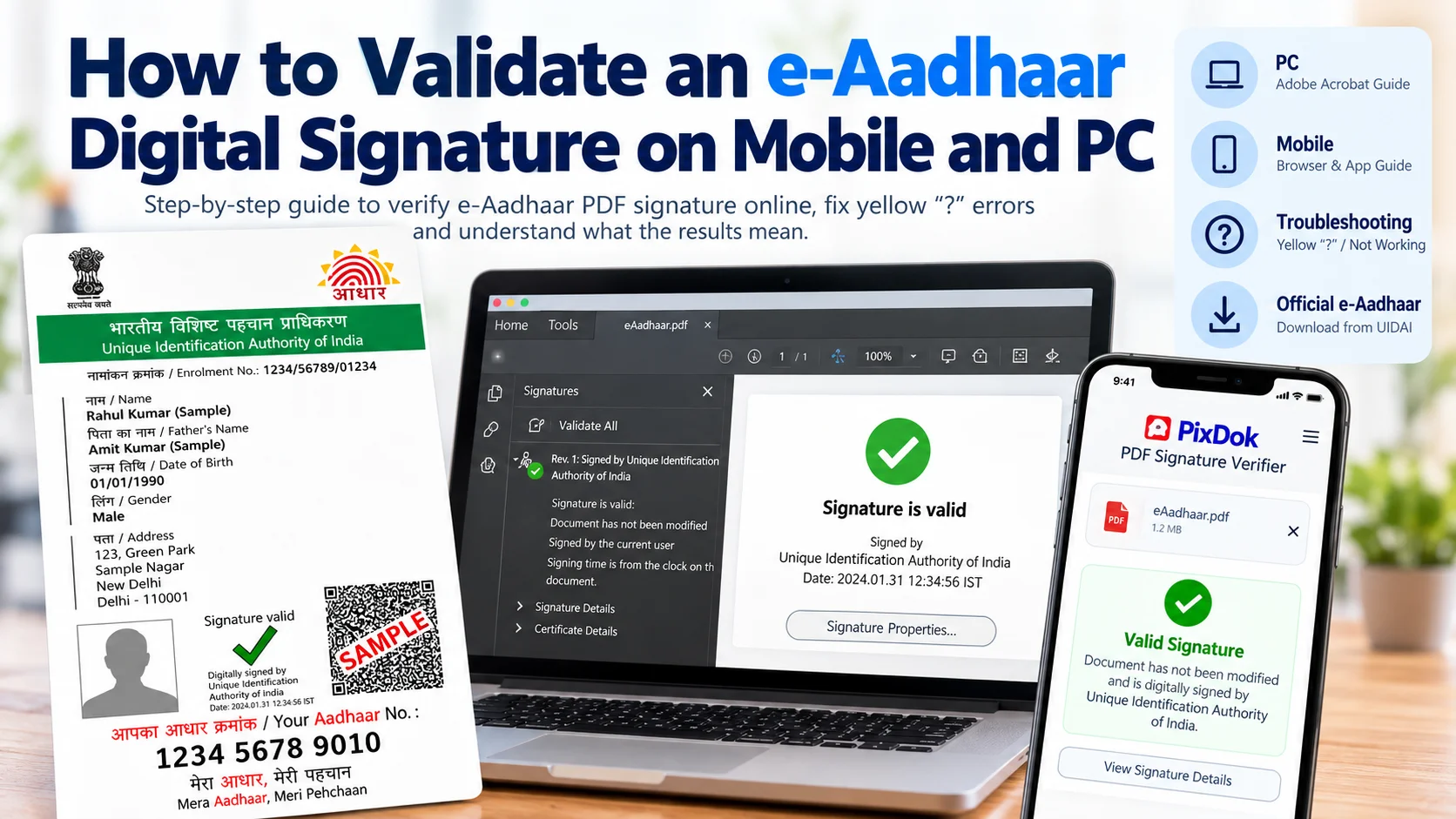
When you download an official electronic Aadhaar (e-Aadhaar) from the UIDAI portal, you will often notice a yellow question mark (?) next to the digital signature instead of a green checkmark. Many citizens wonder: Is my document valid? Why is the signature untrusted? How can I validate an e-Aadhaar digital signature on mobile or computer?
In this comprehensive guide, we explain exactly what an e-Aadhaar digital signature is, how public-key cryptography works in government PDFs, and provide step-by-step instructions to validate your signature on desktop PC (using Adobe Acrobat Reader) and on mobile phones using the PixDok e-Aadhaar Digital Signature Verifier.
What Is an e-Aadhaar Digital Signature?
An e-Aadhaar digital signature is an electronic cryptographic certificate applied by the Unique Identification Authority of India (UIDAI) at the moment your official document is generated. Unlike a rubber stamp or scanned paper signature, it conforms to international ISO 32000 PDF standards and India's Information Technology Act.
The signature incorporates:
- X.509 Digital Certificate: Issued under the authority of the Controller of Certifying Authorities (CCA India).
- Cryptographic SHA Hash: A unique mathematical digest that locks the entire file.
- Tamper-Evident Byte Ranges: If even a single byte, character, or annotation is modified after signing, the signature immediately fails.
Why Does Aadhaar PDF Show a Yellow Question Mark (?)?
A yellow question mark does not mean your e-Aadhaar is invalid, altered, or forged. It simply indicates that the software you used to open the PDF does not have UIDAI's signing certificate in its local "Trusted Certificates" store.
Because standard web browsers and mobile PDF readers do not ship with India's national government root certificates pre-installed, they default to showing "Signature Validity is Unknown" until trust is established.
Method 1: How to Validate Aadhaar Signature in Adobe Acrobat (PC)
If you are using a Windows desktop or Mac computer with Adobe Acrobat Reader DC, follow these steps to add trust and convert the yellow question mark into a green checkmark:
- Open with Adobe Acrobat Reader: Download and open your e-Aadhaar PDF in official Adobe Acrobat Reader (not your browser's PDF viewer).
- Enter Document Password: Enter your 8-character password (the first 4 letters of your name in CAPITAL letters followed by your 4-digit birth year, e.g.
RAJU1988). - Click the Signature: Click directly on the yellow question mark or open the Signature Panel on the left side of Acrobat.
- Open Signature Properties: Right-click the signature and select Signature Properties..., then click Show Signer's Certificate....
- Add to Trusted Certificates: In the Certificate Viewer window, navigate to the Trust tab and click Add to Trusted Certificates. Click OK when prompted.
- Enable Root Trust: In the settings dialog, check the box labeled Use this certificate as a trusted root and click OK.
- Validate Signature: Return to the Signature Properties window and click Validate Signature. The yellow question mark will turn into the official Green Checkmark (✓).
Note: This configuration sets trust on that specific computer. If you transfer the raw PDF to another device, you will need to validate it there as well.
Method 2: How to Validate Aadhaar Signature on Mobile (Android & iPhone)
Many users do not have access to a desktop PC and want to know how to validate their Aadhaar signature on a smartphone. Native mobile apps like Adobe Acrobat Mobile, Google Drive PDF Viewer, and Apple Files do not support manual root certificate installation, which is why they cannot turn the question mark into a green tick.
However, you can validate your e-Aadhaar signature directly on mobile without installing any apps:
- Open your mobile browser (Chrome, Safari, or Samsung Internet) and visit the PixDok e-Aadhaar Digital Signature Verifier.
- Tap Choose e-Aadhaar PDF and select your downloaded PDF file from your phone's Downloads folder or Files app.
- Enter your 8-character e-Aadhaar password when prompted.
- PixDok's browser engine inspects the cryptographic byte ranges and X.509 certificate in volatile memory within 1–2 seconds, displaying a detailed validity report showing signer authority, certificate status, and document integrity.
Troubleshooting: Why Signature Validation Fails
If your digital signature displays a red cross (✕) or fails to validate, check the following common causes:
- The PDF was modified: Opening and saving an e-Aadhaar PDF in standard image editors, cropping tools, or non-PKI PDF tools breaks the byte-range hash, causing the signature to become invalid.
- Scanned paper copies: Scanning a physical printout only captures flat pixels. Scanned images do not contain digital certificates and cannot be verified cryptographically.
- Corrupted download: If the download was interrupted, re-download a fresh copy directly from myAadhaar Download Portal.
Aadhaar Validity Date Check Online vs Digital Signature Validation
Citizens frequently search for Aadhaar validity date check online. It is important to know that an Aadhaar card does not have an expiry or validity date—it is valid for life.
An "Aadhaar validity check" is an official service on myaadhaar.uidai.gov.in where you can enter a 12-digit Aadhaar number to verify whether the number is currently active in UIDAI's central database. In contrast, digital signature validation verifies whether the electronic PDF file on your computer or phone is genuine and unaltered.
Next Steps: Converting Verified e-Aadhaar to PVC Card
Once you have verified that your e-Aadhaar PDF is cryptographically intact and authentic, you can prepare it for wallet storage or printing. Use PixDok's free Aadhaar PDF to PVC Card Maker to convert your file into a standard 86 × 54 mm CR80 plastic card layout in seconds.