
Executive Summary
Password protection on PDF files serves as a vital line of defense for sensitive information. However, when you legitimate owners lose access to encrypted files or repeatedly face the friction of entering passwords for daily operational files like bank statements, payslips, or tax forms a reliable unlocking mechanism becomes essential.
Unlocking a password-protected PDF doesn't require purchasing expensive desktop suites or having deep cybersecurity expertise. This guide breaks down the difference between PDF password types, when and how you can legally unlock documents, and a step-by-step walkthrough to remove restrictions using the web-based PixDok PDF Unlocker.
Process your files with studio quality in your browser with zero registration required.
Try PixDok Tool NowUnderstanding PDF Security: Open vs. Owner Passwords
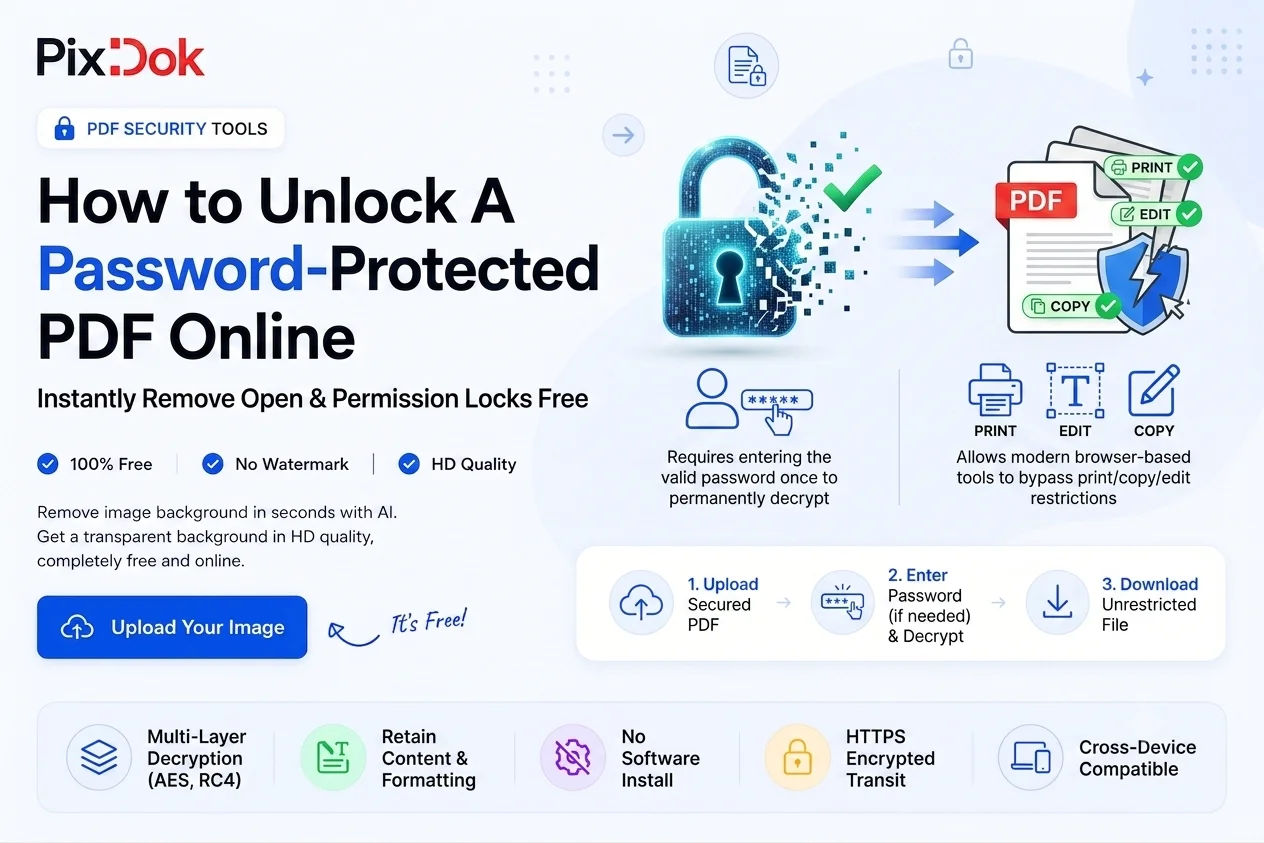
Before attempting to unlock a PDF document, it is crucial to understand the two distinct layers of encryption used by the PDF standard (ISO 32000):
┌─────────────────────────────────────────────────────────────┐
│                    PDF Encryption Types                     │
└──────────────────────────────┬──────────────────────────────┘
                               │
         ┌─────────────────────┴─────────────────────┐
         ▼                                           ▼
┌─────────────────────────┐                 ┌─────────────────────────┐
│ User / Open Password    │                 │ Owner / Permissions     │
│ (Requires password to   │                 │ (Opens freely, but      │
│  view contents)         │                 │  restricts printing/    │
└─────────────────────────┘                 │  editing/copying)       │
                                            └─────────────────────────┘
1. User / Open Password (Document Open Security)
-
What it does: Prevents unauthorized users from opening or viewing the contents of the document.
-
User Experience: Upon opening the file, a pop-up prompts you to enter a password before rendering any pages.
-
Unlocking Requirement: Requires entering the valid password once to authenticate ownership, after which the security layer can be permanently stripped for convenient future access.
2. Owner / Permission Password (Permissions Security)
-
What it does: Allows anyone to open and read the file, but restricts specific operational actions such as printing, copying text, editing contents, or extracting pages.
-
User Experience: You can view the document normally, but buttons for printing or copying text are grayed out in your viewer.
-
Unlocking Requirement: Modern browser-based tools like PixDok can process these restriction tables directly, enabling full editing and printing capabilities.
Why Remove Password Protection from Your PDF Files?
While encryption is critical during transit, keeping permanent passwords on frequently accessed internal documents introduces unnecessary friction:
-
Automated Document Workflows: Enterprise automation systems, batch printers, and document indexing tools often fail or freeze when encountering encrypted files.
-
Simplified Archiving & Storage: Having to remember unique passwords for bank statements or tax documents from years past creates unnecessary administrative overhead.
-
Seamless Multi-Document Merging: If you need to combine multiple receipts or reports using a tool like the PixDok Merge PDF Tool, all input files must be decrypted first.
Step-by-Step Guide: How to Unlock a PDF Online
Unlocking your PDF with PixDok is fast, browser-accelerated, and requires zero software installation or account registration.
Step 1: Upload Your Encrypted PDF File
Navigate to the PixDok Unlock PDF Tool in your browser. Drag and drop your password-protected PDF directly into the designated dropzone, or click Browse Files to select it from your local storage or cloud drive.
Step 2: Authenticate or Process Restrictions
-
If the file has an Owner (Permissions) Password: PixDok’s engine automatically bypasses the print/copy restrictions in seconds.
-
If the file has a User (Open) Password: Promptly enter the correct password when requested to confirm you have authorized access to decrypt the file.
Step 3: Trigger the Decryption Engine
Click Unlock PDF. The system decrypts the underlying AES or RC4 encryption layers and reconstructs a clean, unrestricted version of the PDF structure.
Step 4: Download Your Unlocked PDF
Click Download Unlocked PDF to save your password-free document directly to your computer or mobile device.
Key Comparison: Web-Based Unlocker vs. Desktop Software
| Feature / Capability | PixDok Online PDF Unlocker | Desktop PDF Editors (e.g., Adobe Acrobat Pro) |
| Price | 100% Free | Expensive Monthly/Annual Subscriptions |
| Installation | None (Runs natively in browser) | Requires large software downloads (~1–2 GB) |
| Device Support | Works on Windows, macOS, Android, iOS | Often limited to specific desktop OS licenses |
| Speed | Instantaneous (1–3 seconds) | Depends on local system hardware specs |
| Registration | Not Required | Account sign-in & license activation mandatory |
Frequently Asked Questions (FAQ)
Is it legal to unlock a password-protected PDF?
Yes, provided you are the owner of the document or have explicit permission from the copyright owner to modify its security settings. Bypassing encryption on files you do not own or have legal authorization to access may violate terms of service and intellectual property laws.
Can PixDok recover a forgotten "Open" password?
No. For privacy and security reasons, online PDF tools do not perform brute-force password cracking on lost "Document Open" passwords. You must know the original password to remove the "Open" lock layer initially.
Are my private uploaded documents secure?
Yes. Privacy and data security are strictly enforced:
-
All uploads and downloads are encrypted via 256-bit SSL/HTTPS.
-
Uploaded files are processed in volatile temporary memory and are permanently deleted from our servers within 60 minutes.
-
No human ever inspects, indexes, or stores your document content.
Can I unlock a PDF on my smartphone?
Yes! The PixDok platform is fully responsive and runs seamlessly on mobile browsers like Safari (iOS) and Chrome (Android).
Conclusion
Managing locked PDFs doesn't have to slow down your productivity. By understanding encryption types and leveraging browser-based processing, you can strip away restrictions, restore full printing and copying access, and streamline your digital workflow in seconds.
Eliminate document friction today try the free PixDok PDF Unlocker now!