
Executive Summary
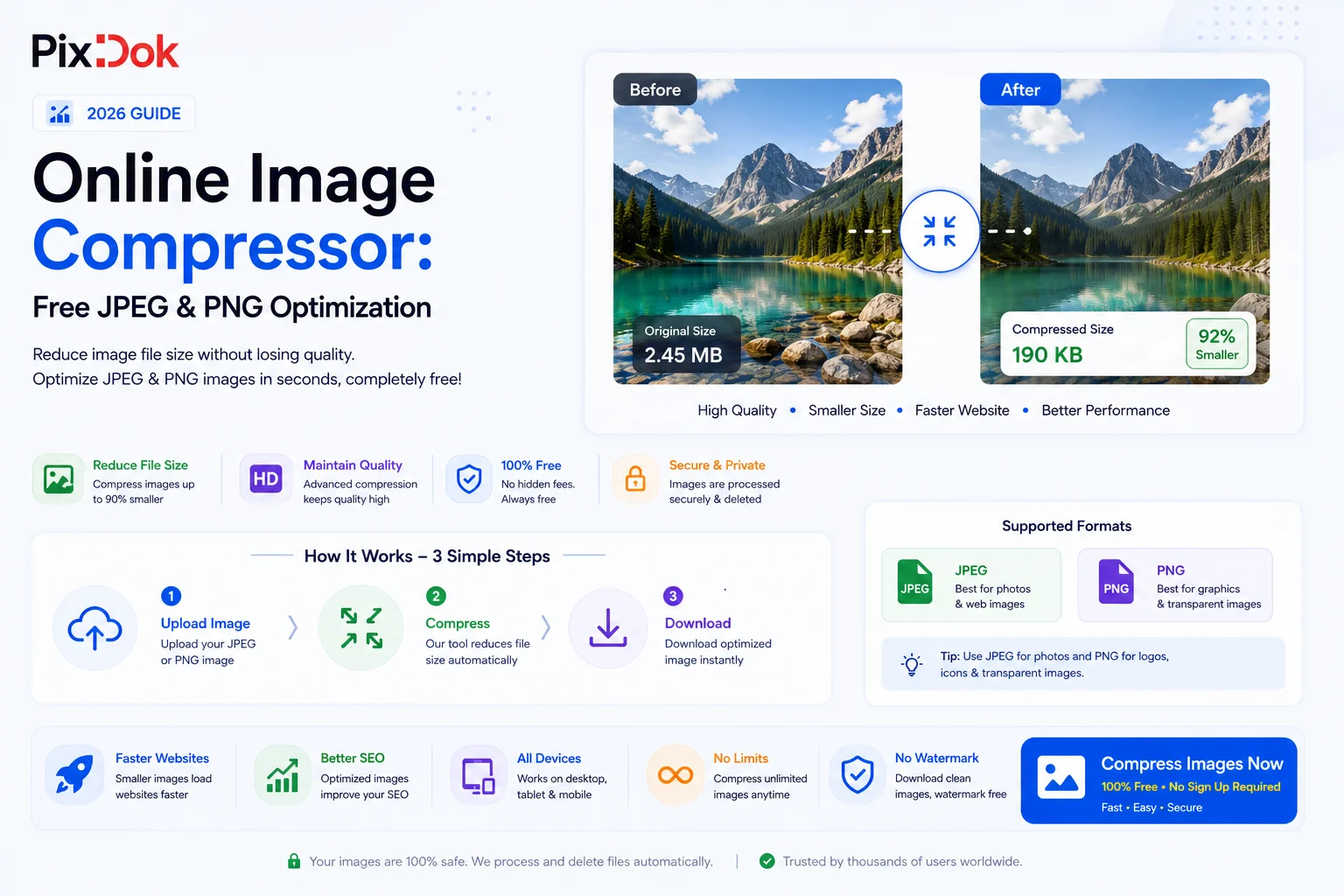
Large image files are one of the primary culprits behind sluggish website load times, inflated bandwidth costs, and poor mobile user experiences. Whether you are an e-commerce platform owner uploading high-resolution product shots, a photographer sharing digital portfolios, or a web developer targeting top Google PageSpeed scores, raw uncompressed images can severely bottleneck performance.
Optimizing images shouldn't require complex command-line scripts or expensive graphic design software subscriptions. This comprehensive guide covers the mechanics of smart image compression, why balancing visual quality with file size is essential for modern web applications, and how to instantly reduce JPEG, PNG, and WebP assets using the free online PixDok Image Compressor.
Process your files with studio quality in your browser with zero registration required.
Try PixDok Tool NowWhy Image Optimization Matters in 2026
Images account for over 50% of total page weight on average across the web. When users visit your site on a mobile network, every extra megabyte translates into delayed rendering times and potential drop-offs.
Optimizing image assets delivers critical benefits across three core areas:
1. Superior SEO & Core Web Vitals
Search engines prioritize fast-loading websites. Key metrics like Largest Contentful Paint (LCP) which measures how quickly main page content loads are directly impacted by hero images and product banners. Compressing your images without visible quality loss helps achieve green scores on Google Lighthouse and PageSpeed Insights.
2. Reduced Bounce Rates & Higher Conversions
Studies consistently show that if a mobile site takes longer than 3 seconds to load, over 50% of visitors abandon the page. In e-commerce, slow-loading product galleries directly result in abandoned carts. Fast images keep user engagement high and path-to-purchase seamless.
3. Lower Server Bandwidth & Cloud Storage Costs
Hosting thousands of high-resolution images can lead to costly bandwidth bills on cloud providers like AWS, Cloudflare, or digital hosting platforms. By shrinking overall file sizes by 60% to 90%, you reduce storage footprints and bandwidth transfer expenses.
Lossy vs. Lossless Compression: Understanding the Difference
When using the PixDok Image Compressor, understanding how algorithms reduce file sizes helps you choose the right settings for your specific image type.
| Compression Type | How It Works | Ideal Image Types | Key Advantage |
| Lossy Compression | Removes imperceptible visual data and subtle color variations that human eyes rarely notice. | Stock photos, hero banners, product photography, natural landscapes. | Massive file size reductions (up to 80–90%). |
| Lossless Compression | Rearranges image data and removes redundant metadata without altering a single pixel. | Screenshots, corporate logos, vector-based graphics, transparent PNGs. | 100% pixel-perfect fidelity with moderate file savings (20–50%). |
Supported File Formats & Optimization Strategies
Different visual formats require tailored optimization techniques. The PixDok Image Compressor intelligently adapts its algorithms depending on the file type you upload:
1. JPEG / JPG Optimization
JPEGs rely on lossy compression and do not support transparency. They excel at displaying complex colors, photographic textures, and gradients.
-
Optimization Goal: Striking the balance between quality (usually between 75% and 85%) and minimal file footprint.
-
Typical Savings: 60% to 85% reduction.
2. PNG Optimization
PNG files offer crisp lines, text legibility, and full alpha-channel transparency, but their uncompressed sizes can be huge.
-
Optimization Goal: Quantizing color palettes (reducing 24-bit depth to indexed 8-bit where applicable) and stripping unnecessary metadata blocks without introducing color banding or fuzzy edges.
-
Typical Savings: 40% to 75% reduction.
3. WebP & Next-Gen Conversion
WebP is a modern image format developed for superior lossy and lossless compression on the web.
-
Optimization Goal: Converting standard JPEG and PNG files into WebP format yields significantly smaller sizes while retaining equivalent image quality.
-
Typical Savings: Additional 25% to 35% savings over traditional JPEGs.
Step-by-Step: How to Compress Images Online for Free
Optimizing your images using PixDok takes only a few seconds and requires no account registration or software downloads.
Step 1: Upload Your Image Files
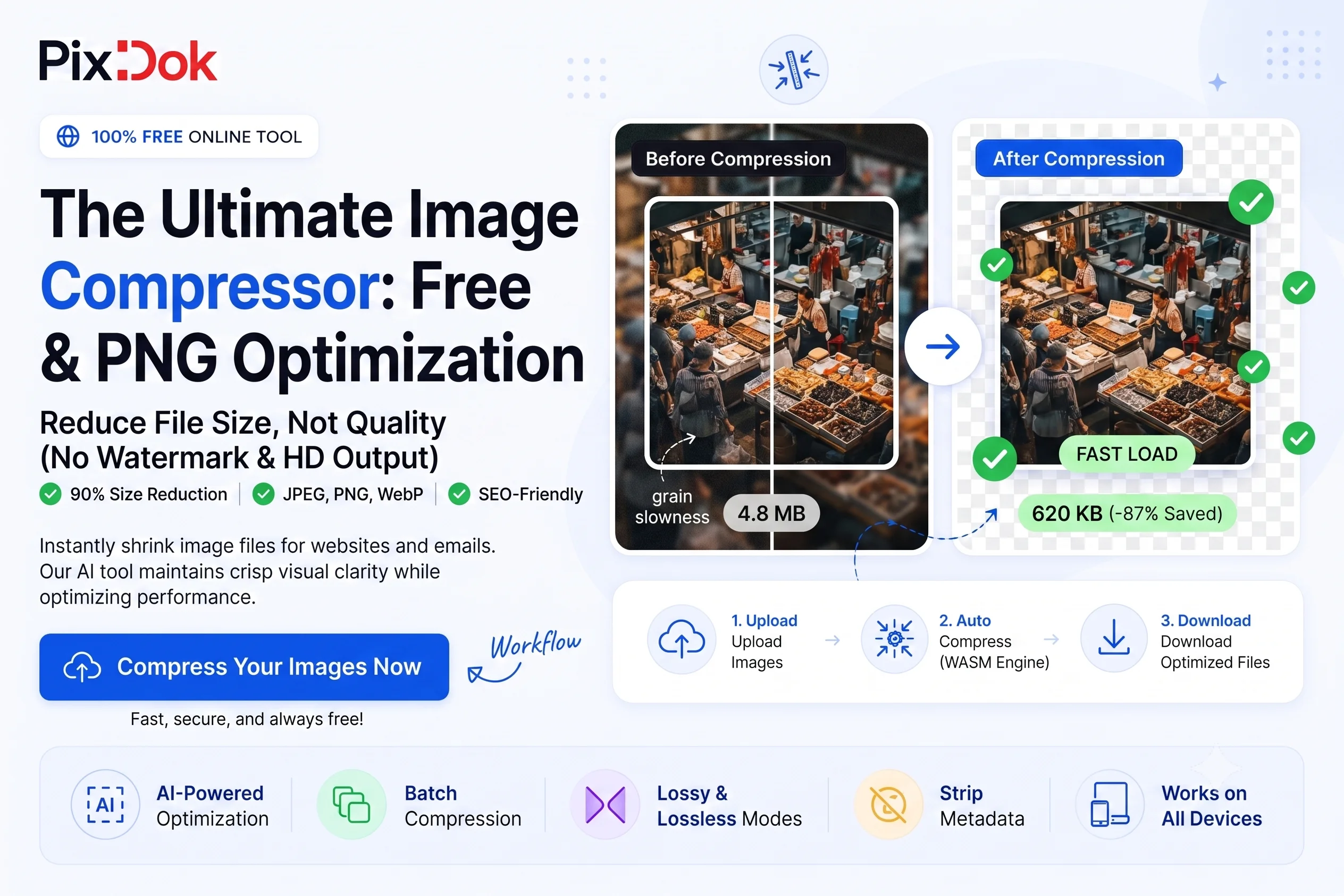
Open the PixDok Image Compressor in your browser. Drag and drop your JPEG, PNG, or WebP files directly into the upload area, or click Select Files to upload from your local drive or mobile gallery. Batch uploading multiple images simultaneously is fully supported.
Step 2: Choose Compression Level & Format Settings
Adjust the compression slider based on your performance targets:
-
Balanced (Recommended): Delivers optimal quality retention with maximal file size savings.
-
High Compression: Prioritizes smallest file size for low-bandwidth mobile networks.
-
Lossless / Max Quality: Retains maximum visual detail while removing internal structural redundancy.
Step 3: Instant AI-Powered Compression Engine
PixDok’s multi-threaded engine analyzes the color density, edge sharping, and metadata structures of every image, stripping out non-essential data in milliseconds.
Step 4: Preview & Download
Review the before-and-after file size comparison side by side. Once satisfied with the results, click Download Image (or Download All as ZIP for batch files) to save your lightweight assets directly to your device.
Best Practices for Web Image Optimization
To maximize performance, pair image compression with these design and development workflows:
💡 Pro-Tips for Web Developers & Designers
Resize Dimensions First: Do not upload a $4000 \times 3000\text{ px}$ image if it will only display in a $800 \times 600\text{ px}$ container. Always crop and resize image dimensions to match the actual target display area before compressing.
Strip EXIF & Camera Metadata: Digital camera photos store extra metadata like camera models, GPS locations, aperture settings, and dates. Stripping EXIF data instantly reduces file sizes without impacting visual pixels.
Leverage Lazy Loading: Combine lightweight compressed images with native browser lazy loading (
loading="lazy") to defer offscreen image fetching until users scroll down.
Frequently Asked Questions (FAQ)
Will compressing my image reduce its physical pixel dimensions?
No. Image compression reduces the underlying byte size (megabytes to kilobytes) by optimizing data structure and color profiles. Your image retains its original width and height dimensions in pixels.
Is there a file limit on how many images I can compress at once?
You can upload and compress batch images using the PixDok Image Compressor completely free of charge without daily limits.
Are my uploaded images secure and confidential?
Yes. Data privacy is guaranteed. Uploads are processed securely over encrypted 256-bit SSL/HTTPS connections. Files are stored in temporary memory purely for processing purposes and are permanently cleared from server logs within 60 minutes.
Can I compress images on my mobile phone?
Yes! The PixDok interface is fully responsive across iOS (Safari) and Android (Chrome) browsers, allowing you to compress photos directly from your smartphone or tablet on the go.
Conclusion
Don't let heavy image assets drag down your website performance, SEO rankings, or user engagement. By incorporating smart, lossy-to-lossless image optimization into your content workflow, you ensure fast, crisp visual delivery across every platform and screen resolution.
Optimized web graphics are only a click away try the free PixDok Image Compressor today!